Ever since I started highlighting text on my Kindle, then my PocketBook, and also the old-fashioned way with pen and paper, I have been trying to store those highlights in my digital garden — which serves as a second brain for recalling insights from books I have read. I built brainfck.org to keep my collection of notes available online, not only for myself but also for others. I even added a search feature (first introduced in ce36502 and later improved in 9a23b40) that lets you search across the entire collection. Whenever I want to look something up, I go to brainfck.org, type in a keyword, and it shows me the books and journal entries where that word appears.
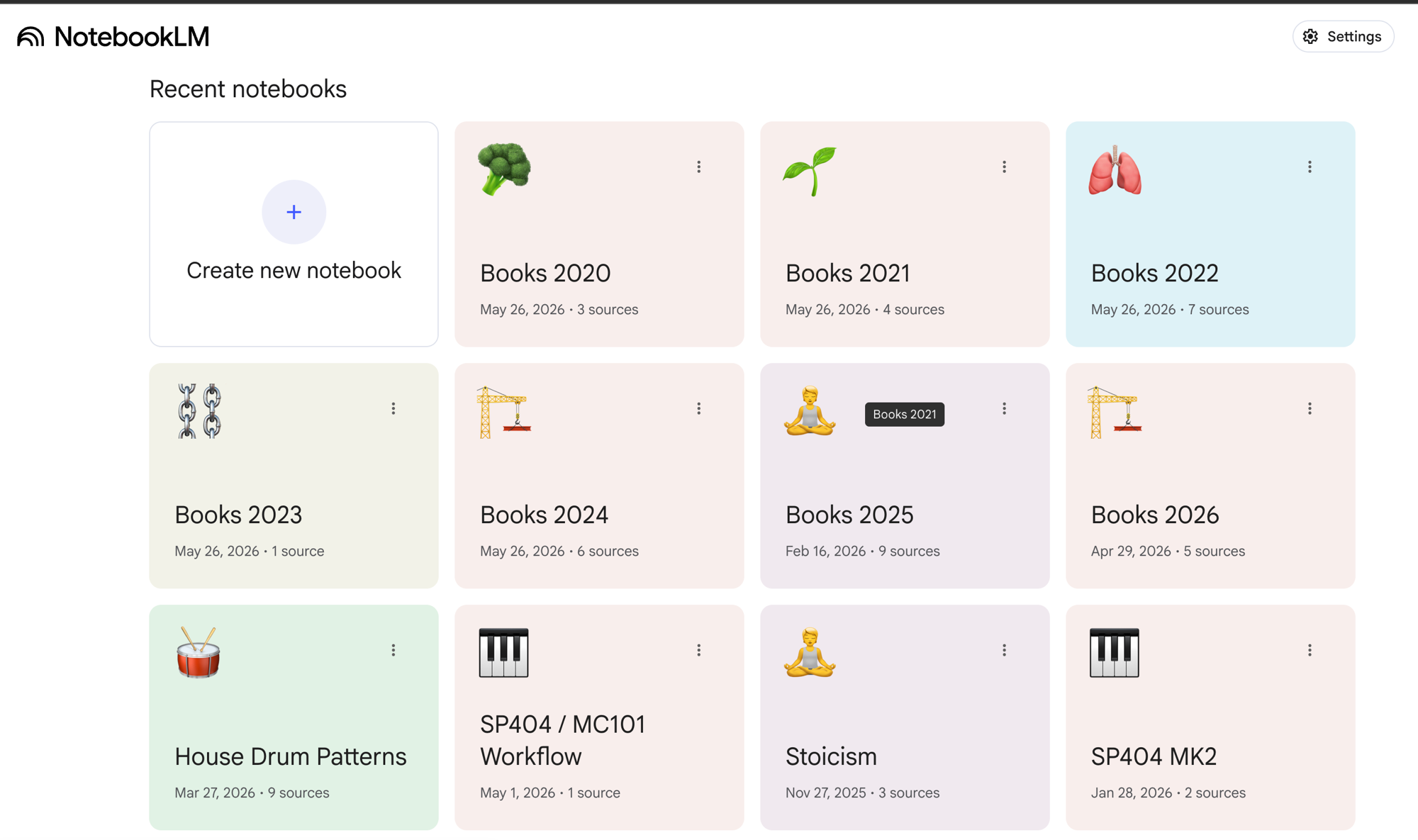
Recently I built a workflow that allows to expand all this. I now have all my e-books loaded into NotebookLM notebooks, organised year by year, so I can ask questions across everything I have read in a given period. The process is to convert EPUBs and PDFs to Markdown, upload them into the relevant notebook, and start asking questions. A particularly useful feature is that you can select a single source and have a focused conversation about just that one book.
This post describes how I built it using Claude Code with the NotebookLM MCP server and the Dropbox (where I usually store my EPUB files).
The goal #
The end state is simple: one NotebookLM notebook per year (Books 2020, Books 2021, …, Books 2026), each containing the full text of every book I read that year. With that in place I can do things like:
“What did these books say about motivation and focus?”
“Summarise each book in three bullet points”
“Which books overlap on the topic of climate change?”
The tools #
I used three MCP servers inside Claude Code:
- notebooklm-mcp — create notebooks, add sources, query them
- DropboxMCP — search and download EPUBs/PDFs from my PocketBook library synced to Dropbox
- WebFetch — scrape brainfck.org/books to get the canonical list of books per year
To keep MCP servers scoped per repository, add them to your project’s .claude.json under mcpServers:
|
|
Install the NotebookLM CLI once globally with:
|
|
The Dropbox MCP is a hosted HTTP server — no local install needed, just authenticate once via claude mcp auth DropboxMCP in the project directory.
The workflow #
Step 1: Get the book list for a year #
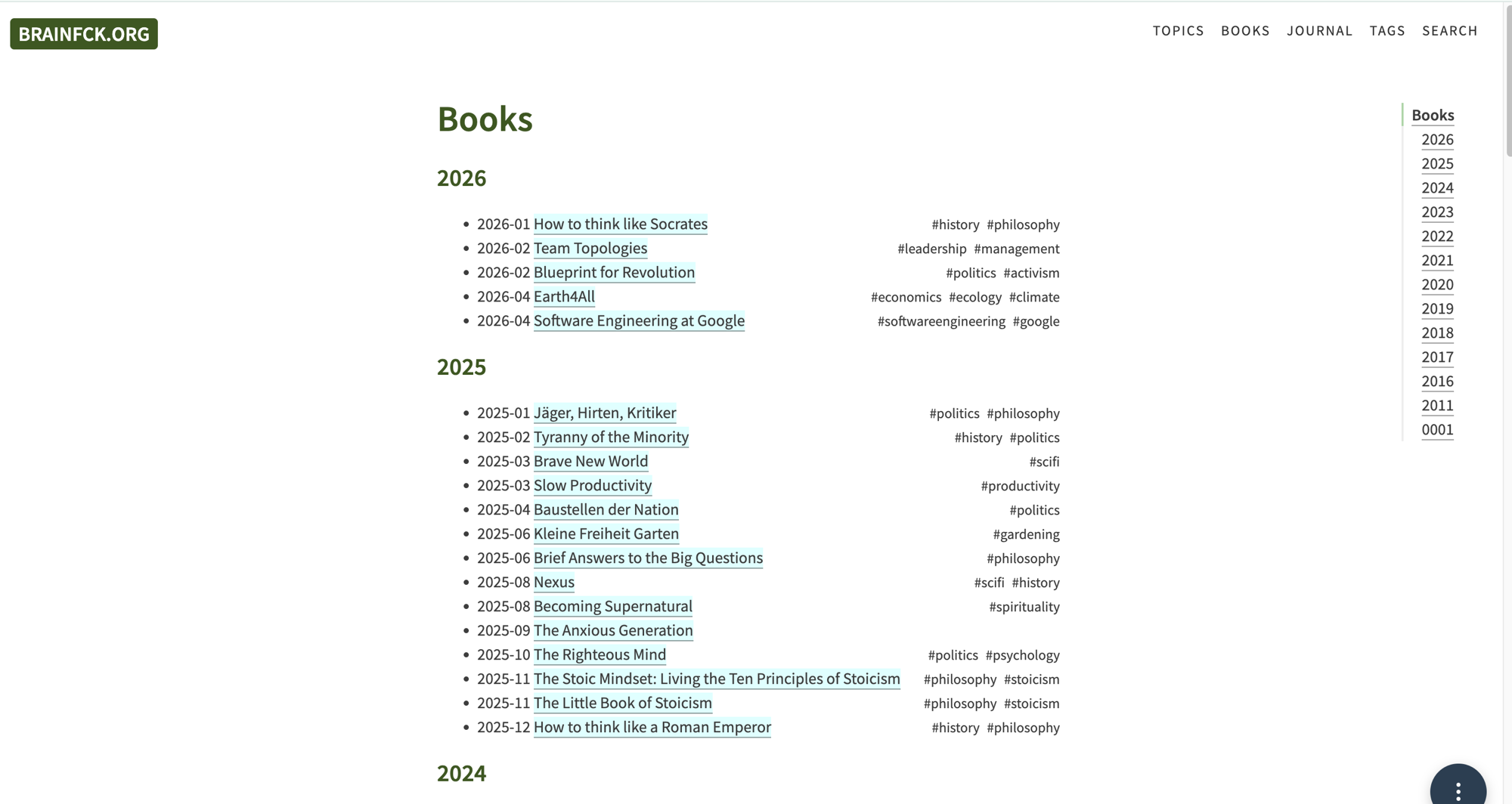
The brainfck books page lists the books I have read, sorted by year. Starting with only two notebooks (“Books 2026” and “Books 2025”), I wanted to create notebooks for earlier years but I did not know which books I actually had as EPUBs in Dropbox.
|
|
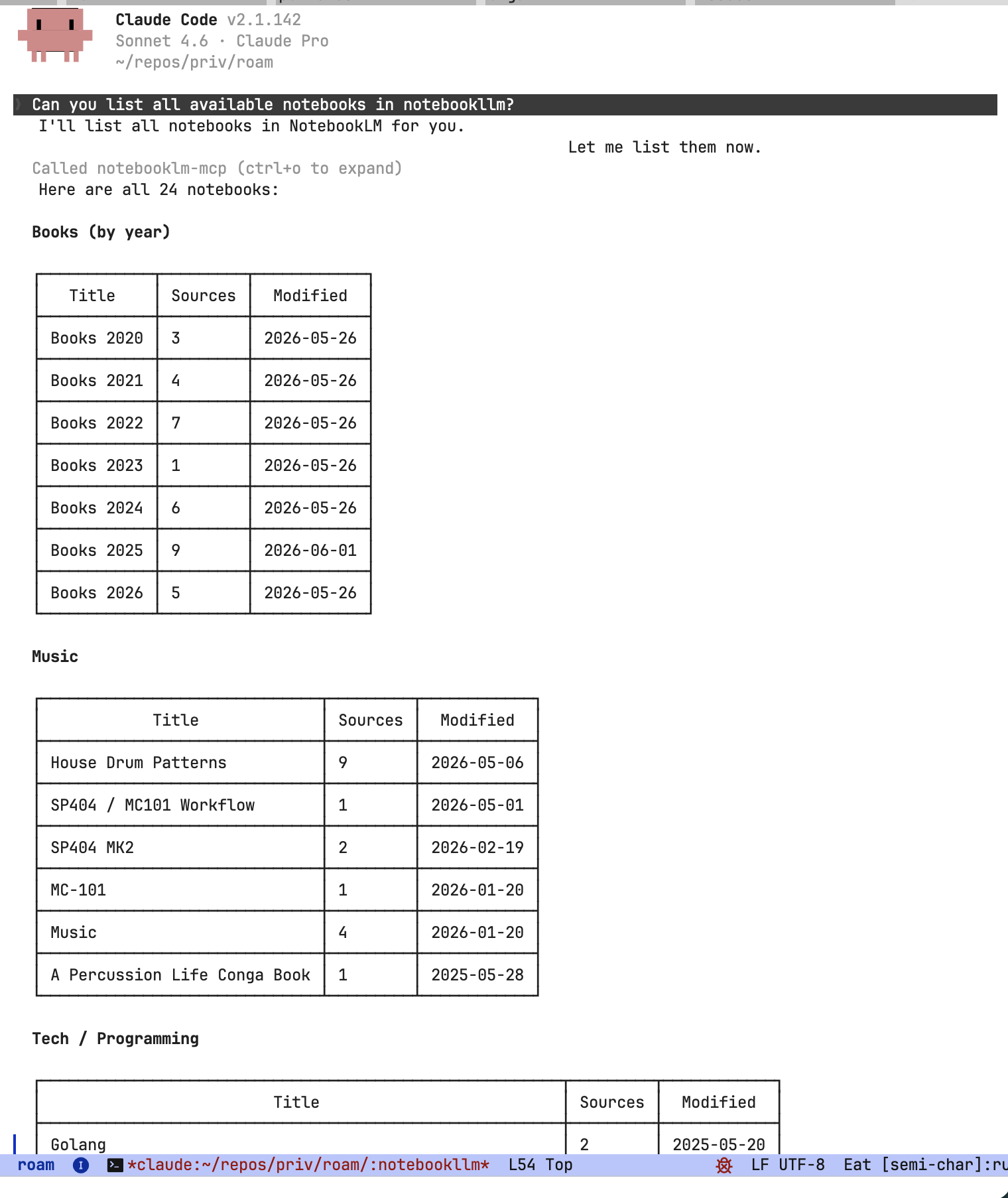
With the book list in hand, I also asked Claude to list the existing NotebookLM notebooks so I could see which years were already covered and how many sources each had:
Step 2: Search Dropbox for the files #
For each book I ran a parallel Dropbox search:
I asked Claude to search for each book title using the DropboxMCP MCP tool. Under the hood, Claude Code calls the tool directly:
|
|
Claude ran all searches in parallel, then cross-referenced the results against the book list. Many books lived in year-based folders (E-Books/2024/, E-Books/2025/, etc.), while older ones were in the root E-Books/ folder or the Golang/ subfolder.
Step 3: Extract text content #
For files under 5MB, the Dropbox MCP can extract text directly:
|
|
For larger files (5–15MB EPUBs, oversized PDFs), I had to generate shared download link:
|
|
Then downloaded locally and converted with pandoc:
|
|
For PDFs, pdftotext worked better:
|
|
Step 4: Create the notebook and upload #
With the converted Markdown files in hand, I first created a new notebook for the year, then added each book as a source. The notebook_create call returns a notebook ID which is then passed to every subsequent source_add call:
|
|
All source_add calls for a given year ran in parallel — typically 6–8 at once — so populating a full year’s notebook took only a minute or two.
Querying across years #
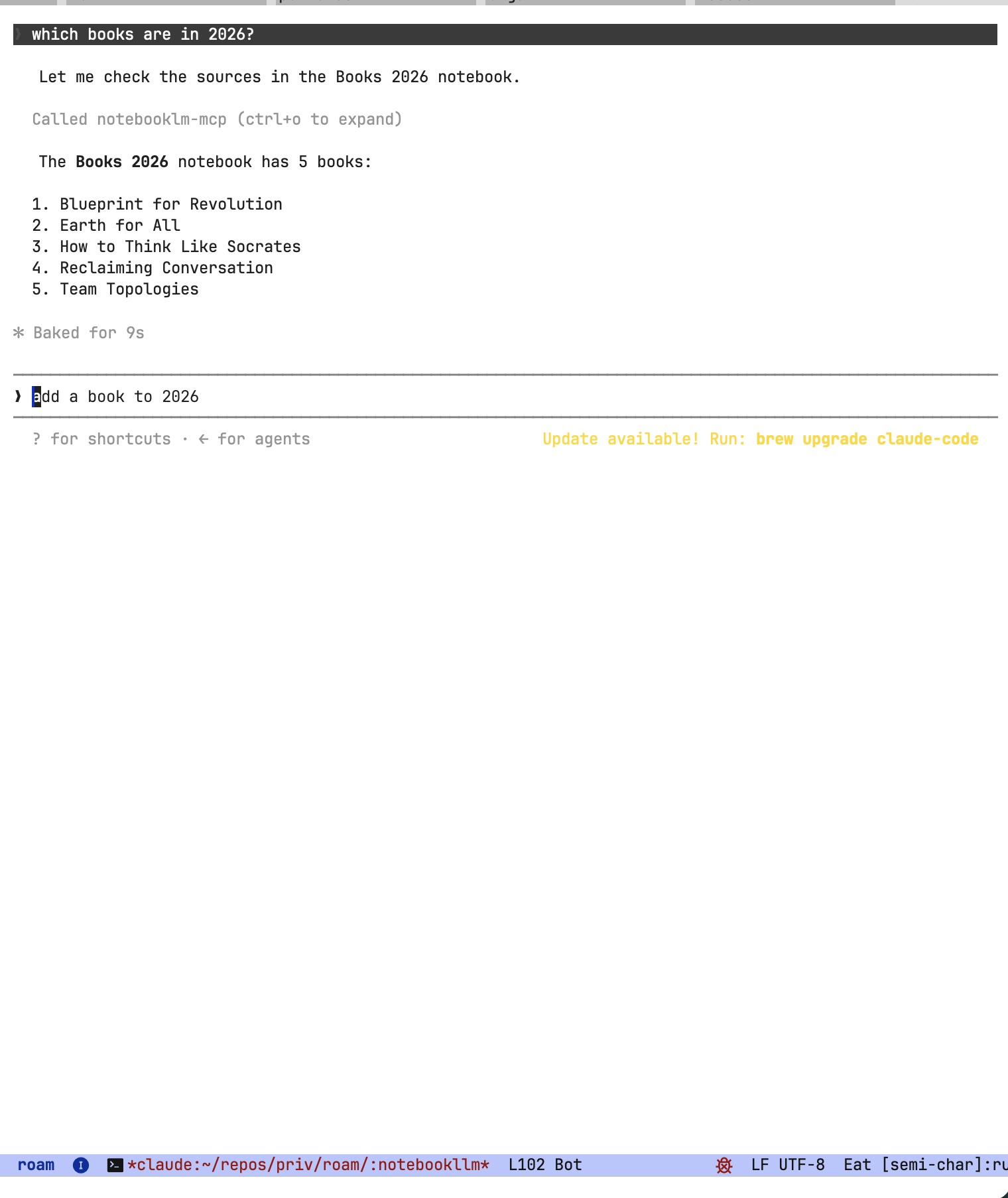
With all notebooks populated, I can now query a year’s reading. But even simpler — I can just ask Claude Code in plain English:
Or go deeper with a structured query:
|
|
The answers are grounded in the source material and surprisingly detailed. Here’s an example querying the main concepts from Earth for All:
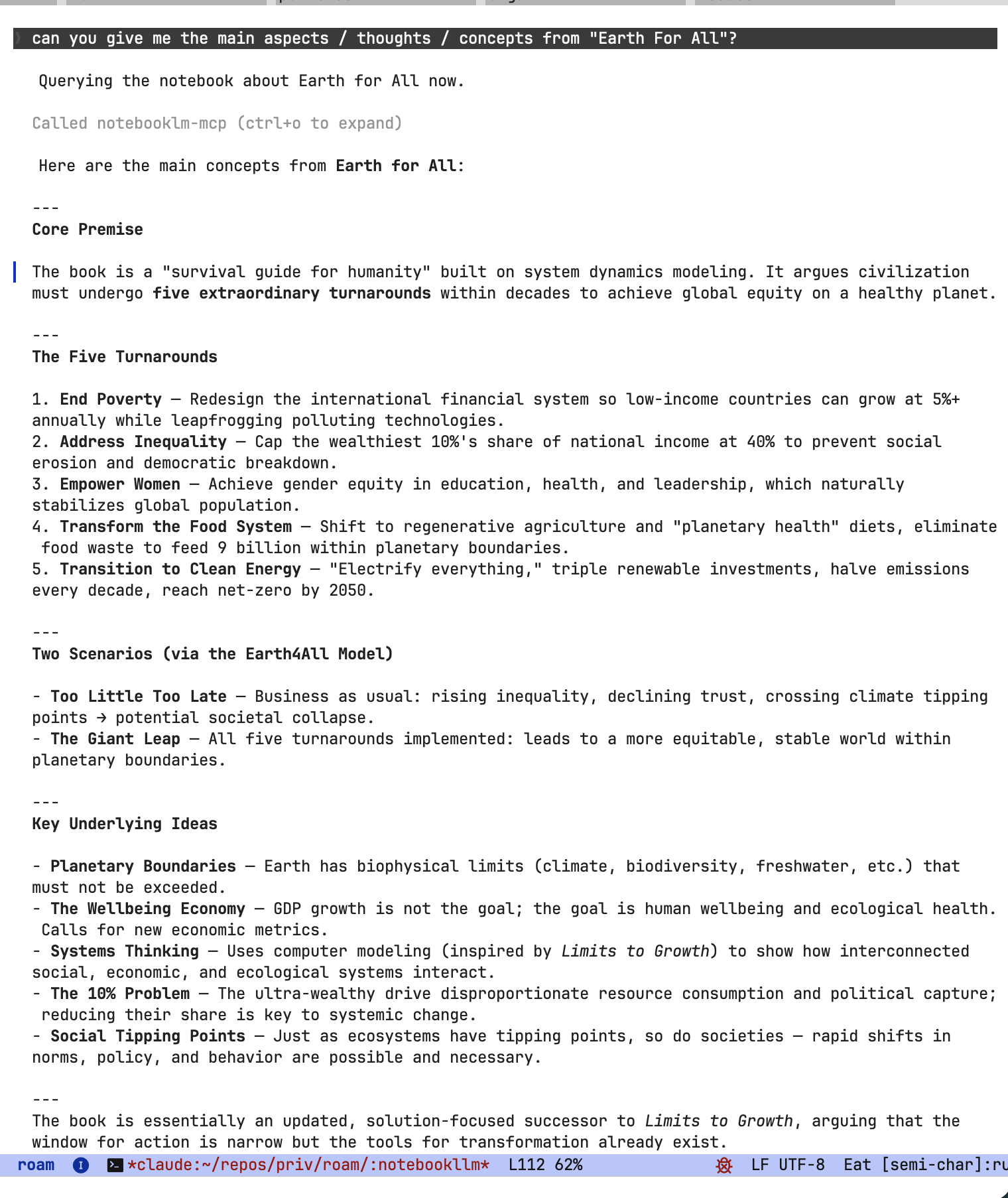
This is particularly useful for rediscovering insights from books I read years ago and for finding thematic threads across multiple books in the same period.
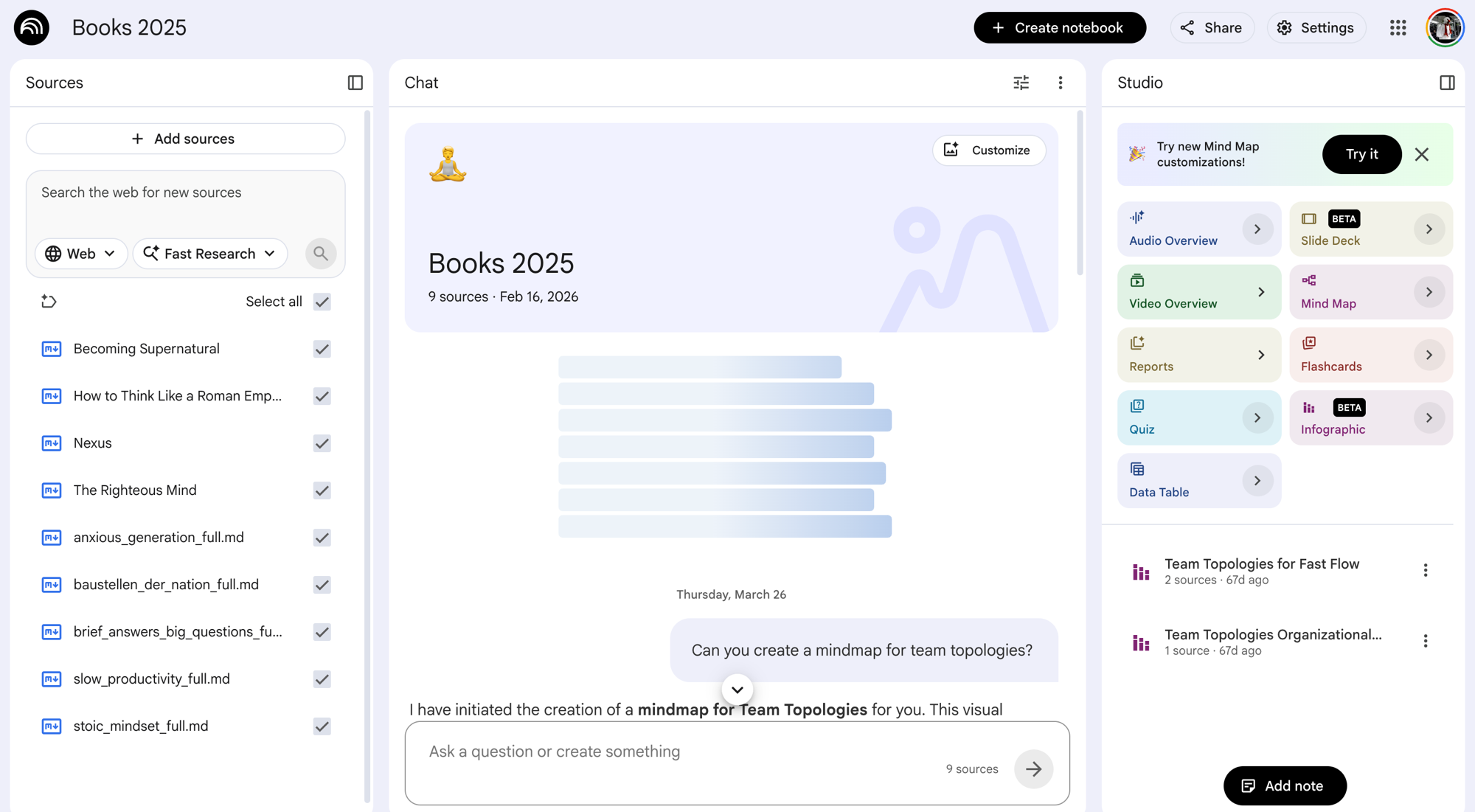
The whole setup took a few hours across multiple sessions — most of that was handling edge cases (DRM, oversized files, misplacements). The actual notebook creation and uploading per year takes about 5 minutes once the files are in order.